About
This Chrome extension was created as a final Project 5 for Typography & Interaction Course at Parsons School of Design in 2026.
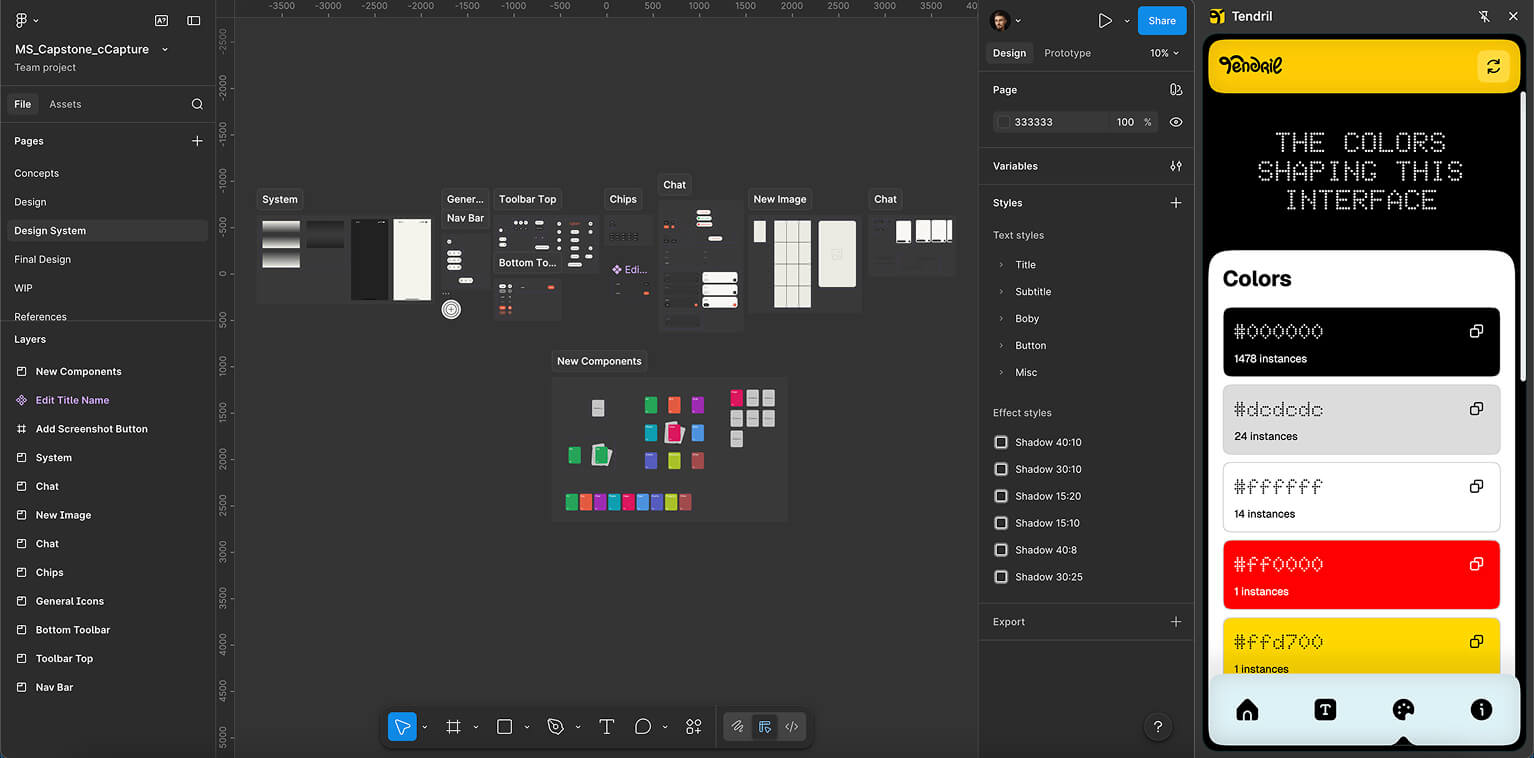
Tendril is a Chrome browser extension that turns any website into a quick design reference. Open any page, click the extension icon, and get fonts, typography specs, and colors right in your browser side panel. It can also help reveal semantic and SEO-related gaps by showing only the elements that actually exist in the live DOM. All the useful information in one extension.
How to install
-
Download or clone this repository.
-
Open Chrome and go to chrome: //extensions.
-
Enable Developer Mode in the top right
-
Click Load unpacked and select the project folder in the extension.
-
Click the Tendril icon in the toolbar to open the side panel.
-
That’s it — the extension is ready to use.
Who is this for?
Designers, product people, graphic designers, and honestly anyone who’s into design and wants to better understand how websites are built.
What I'm solving with Tendril?
Every respectable product or web designer spends millions of hours looking for references. And when they finally find something that can actually serve as an inspiration for their project, they spend another million hours collecting all those references. That includes keeping a ridiculous number of tabs open and manually pulling data out of them. The list is huge and includes things like color pairs used across the website, its design system, typography pairs, which fonts are used for which semantic elements, sizes, and all that stuff.
Usually all of this is done for one reason: to put together a moodboard for the next presentation. My extension, Tendril, is built to make that painful path a lot easier.
Open a website, click the extension icon, and pull data from the already analyzed DOM that you can later use in your Figma. No screenshots, no color-picking one element at a time, no installing 10 different extensions just to figure out which font is being used and where. Everything important and actually useful is in one place.
Tendril can also help identify development issues related to semantics and SEO. Since it scans the actual DOM structure of a live page, it only displays elements that are truly present. So if a website is missing an h1, uses an inconsistent heading structure, or lacks expected semantic text elements, that will be reflected in the extension output right away.
Top navbar
Refresh button - the circular arrow in the top right corner. It rescans the currently active tab.

This matters when the extension is already open in the side panel and you want to switch between pages without closing it. For example, you can open a reference website, move to Figma, then come back to the site, hit Refresh, and get the data from that exact page.
Home screen
This is the starting screen. It shows a short font summary and a mini color palette from the scanned page. The font summary includes the categories Heading 1-3 and Bodycopy, rendered in their actual fonts and weights.
-
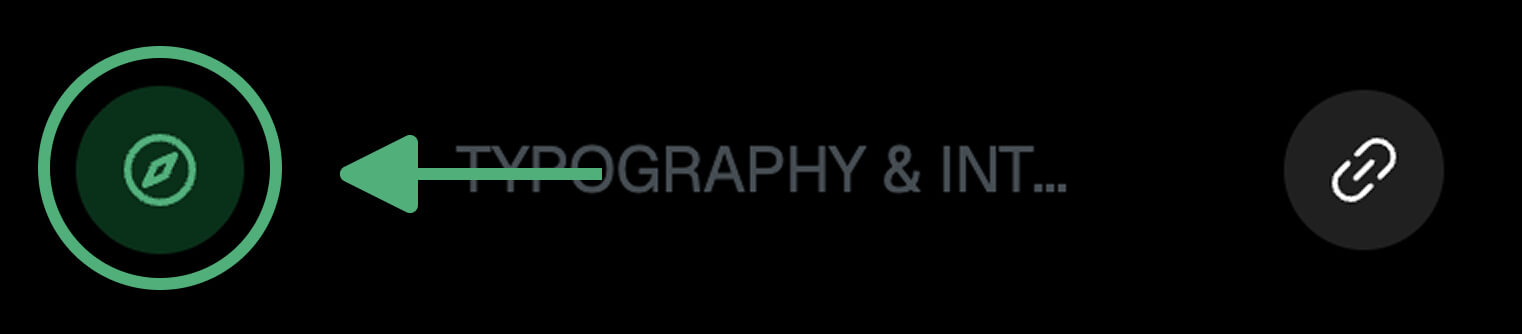
Return to source tab button - takes you back to the tab that was active when the scan happened. Useful when you switched to Figma or another tab and want to quickly jump back to the original page. Just click the compass.

-
Open link in a new tab button - opens the scanned website in a new window. Use it when you want to quickly move to a specific internal page of the same website or keep the source open next to Figma without closing your current tab.
Next to these buttons, Tendril shows the scanned website title pulled from the title tag.
Fonts screen
A detailed typography breakdown. The extension scans following tags: h1-h6, p, li, a, span, label. For each tag, it shows:
-
Number of elements of that tag found on the page
-
Font Family
-
Font Size
-
Line Height
-
Font Weight
-
Letter Spacing
This makes it easy to pull typography tokens straight into Figma.
Colors screen
A full color palette of the page. Tendril extracts text, background, and border colors from all elements, converts them to HEX, and removes duplicates. Colors are sorted from most frequently used to least used. Each color card includes:
-
HEX value
-
Usage count
-
Copy to clipboard button
Click the copy icon and the HEX value goes straight to your clipboard.
Typical workflow
-
Open a reference website
-
Click the Tendril icon - the side panel opens and automatically scans the page
-
Move to Figma - the panel stays open
-
Copy whatever you need: HEX colors, fonts, sizes
-
If you need another page from the same site, click the link button, go there, return to the extension, and hit Refresh
-
If you lose the original tab, click the compass to jump back to it